Operate
The Operate section contains tools for running bulk labeling jobs and reviewing their results. These operations can affect a large number of entities at once, so Osprey includes safeguards to help prevent unintended impact.
Bulk Actions
Bulk Actions let you apply a label to every entity matching the current query; useful when you’ve identified a clear pattern and want to act on many entities at once.
Warning
A false positive in a bulk action can label a large number of entities incorrectly. Always review the entity count before confirming a job.
Starting a bulk action
There are two ways to start a bulk action:
- Bulk Actions → Create New Job to create a job from an uploaded file of entities
- From the Query page: use the bulk label drawer in the chart column, which pre-fills the query from your current session
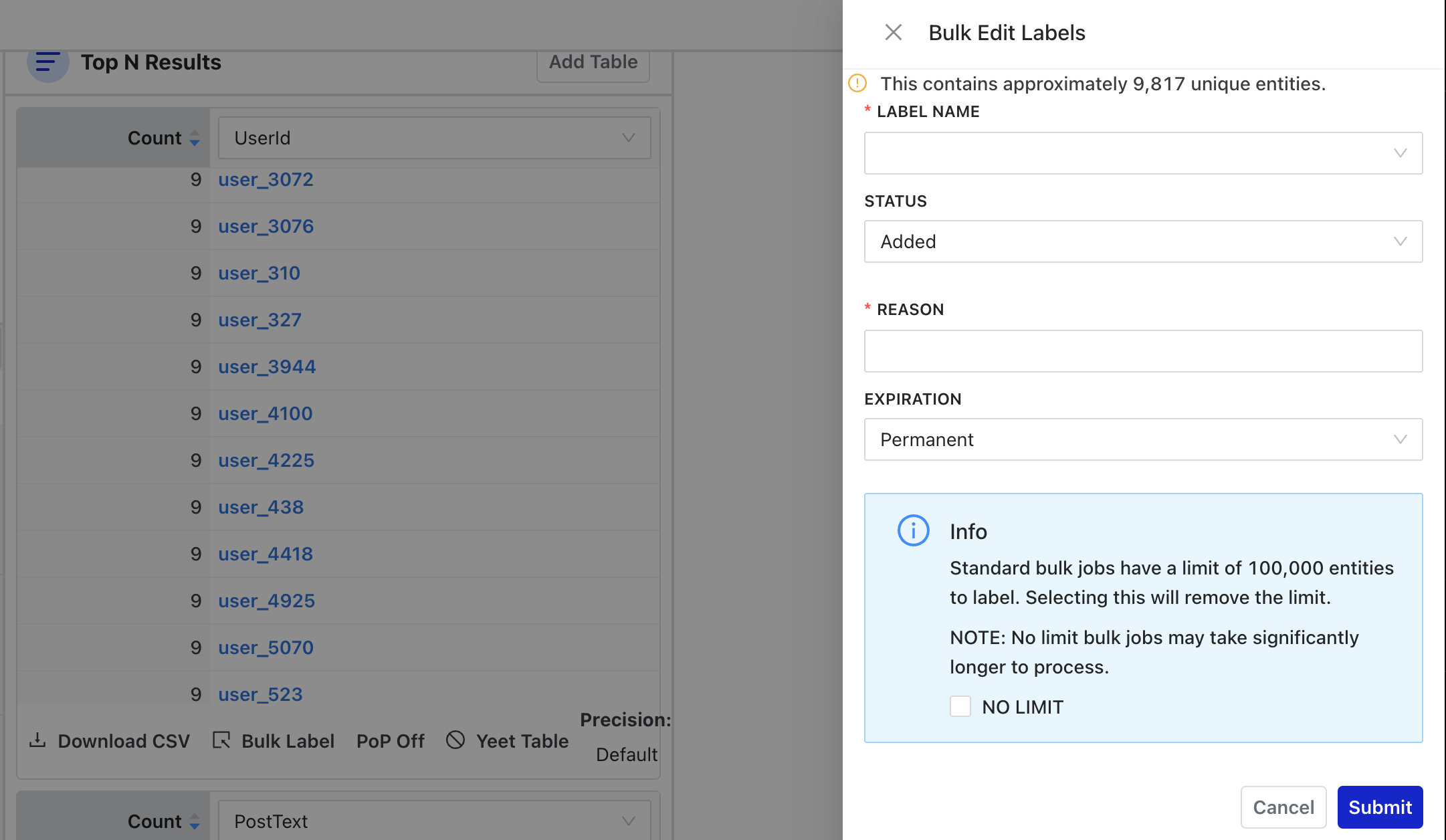
Before submitting, Osprey shows a count of how many unique entities will be labeled. Review this number carefully to understand the impact of your bulk action.
For scripted or bulk labeling from the command line (e.g., importing label lists from external sources), see
apply_labelandbulk_apply_labelin the CLI Reference.
Each labeling job takes:
- The label to apply and its status
- A reason (required for all labeling operations)
- An optional expiration
Standard bulk jobs are limited to 100,000 entities; the form has a checkbox to remove the limit for larger jobs.
Monitoring jobs
The Bulk Actions page shows a table of all jobs with their ID, status, progress percentage, the user who created them, and when they were created. Jobs that are still running show a cancel button.
The page polls for updates automatically; you don’t need to refresh to see progress.
Bulk Job History
The Bulk Job History page provides a detailed view of past bulk jobs.
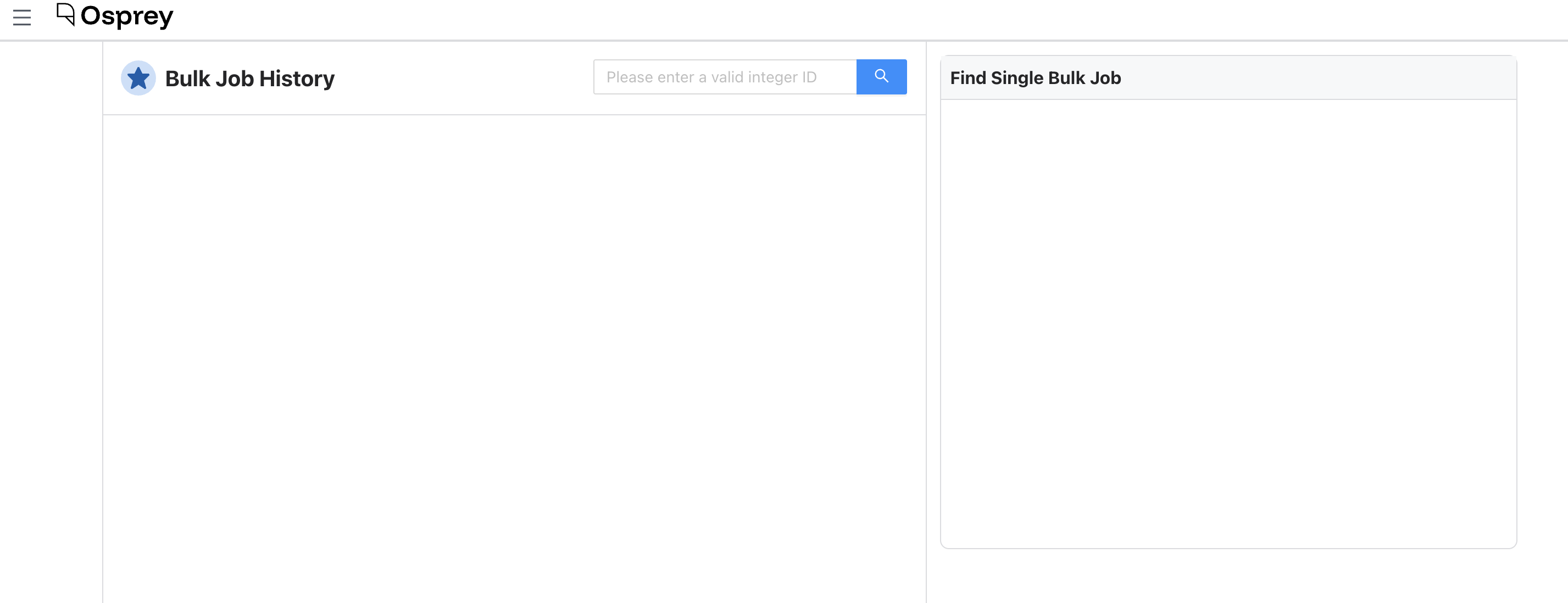
The page has two columns:
- Recent bulk jobs with status, progress, and summary statistics; filterable by task ID
- Detailed view of a single job, including its full results and logs
To look up a specific job, enter its task ID in the search field. Each bulk job has a unique ID that’s logged when the job is created.