Child Safety (NCMEC)
Coop supports reporting child sexual abuse material (CSAM) to the National Center for Missing & Exploited Children (NCMEC) via the CyberTipline Reporting API. Coop handles the full detection, routing, and reporting lifecycle: flagging known or suspected CSAM automatically, routing it to a dedicated NCMEC review queue, and walking reviewers through CyberTip submission.
For setup and configuration, see the NCMEC integration.
Access and roles
Since NCMEC data is sensitive, Coop restricts access to the Admin, Moderator Manager, and Child Safety Moderator roles.
How content enters your NCMEC queue
There are four ways content can enter the NCMEC review queue:
-
Hash matching (HMA): Coop compares uploaded media against NCMEC’s database of known CSAM hashes via the Hasher-Matcher-Actioner (HMA) integration. A hash match is a strong, reliable signal.
-
Novel CSAM detection (Content Safety API): For content with no known hash, Coop integrates with Google’s Content Safety API to classify images for potential CSAM. High-confidence detections can be routed directly to the NCMEC queue or to a triage queue first.
-
Inbound report flagged as CSAM: When your platform sends a user report to Coop flagged as CSAM, Coop routes it directly to the NCMEC queue without evaluating normal routing rules.
-
Manual escalation: In any review job, moderators with NCMEC access can select Enqueue to NCMEC from the action list. This immediately moves the job to the NCMEC queue.
See Routing Content to NCMEC for setup.
What happens when content is enqueued
When content enters the NCMEC queue through any of the above paths, Coop:
-
Identifies the user associated with the content (via the
creatorIdfield on the content item, or directly if the item is a User type). -
Checks whether that user already has an open NCMEC job. If one exists, it is updated with the new content; no duplicate jobs are created.
-
Fetches all media ever associated with that user across your platform.
-
Creates a single consolidated NCMEC review job containing the user and all their media.
-
Routes the job to the configured NCMEC queue.
This user-centric aggregation means that even if a user has uploaded many pieces of CSAM, a single NCMEC review job is created for the reviewer, and a single, more actionable CyberTip is submitted to NCMEC rather than separate reports per piece of content.
Reviewing a NCMEC job
The NCMEC job UI is distinct from standard review jobs. It is designed around the user and all of their associated media.
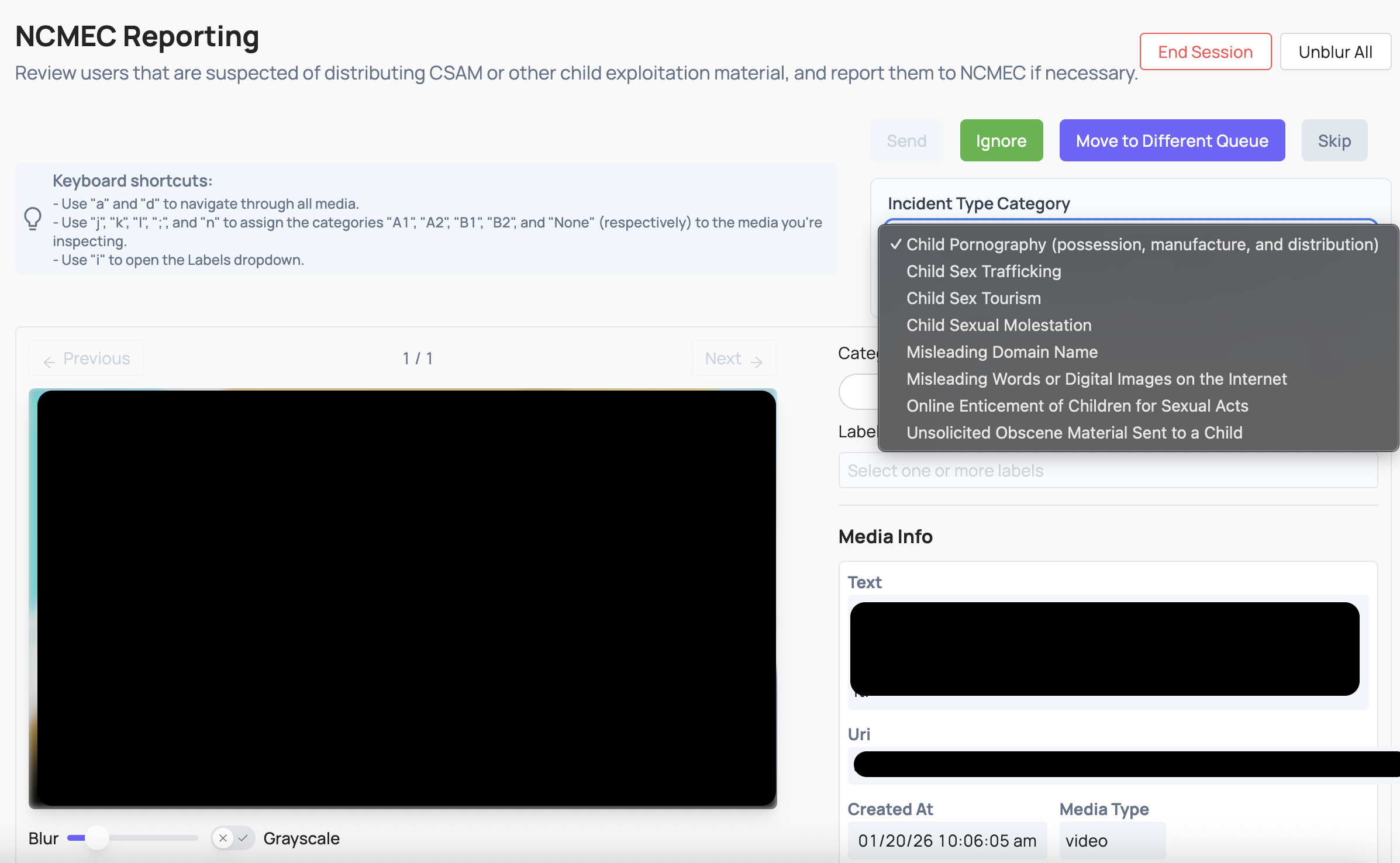
Incident Type
Select the applicable incident type from the NCMEC CyberTipline’s defined categories:
- Child Pornography (possession, manufacture, and distribution)
- Child Sex Trafficking
- Child Sex Tourism
- Child Sexual Molestation
- Misleading Domain Name
- Misleading Words or Digital Images on the Internet
- Online Enticement of Children for Sexual Acts
- Unsolicited Obscene Material Sent to a Child
Industry Classification
Apply an ESP-designated industry classification to each media item being reported:
| Classification | Description |
|---|---|
| A1 | Prepubescent minor, explicit sexual activity |
| A2 | Prepubescent minor, non-explicit nudity or sexual posing |
| B1 | Pubescent minor, explicit sexual activity |
| B2 | Pubescent minor, non-explicit nudity or sexual posing |
Keyboard shortcuts are available in the review UI to speed up classification.
File Annotations
Apply one or more labels to individual media items to provide NCMEC with additional context:
| Label | Description |
|---|---|
animeDrawingVirtualHentai | The file depicts anime, cartoon, virtual, or hentai content. |
potentialMeme | The file appears to be shared out of mimicry or other seemingly non-malicious intent. |
viral | The file is circulating rapidly from user to user. |
possibleSelfProduction | The file is believed to be self-produced. |
physicalHarm | The file depicts an intentional act of causing physical injury or trauma. |
violenceGore | The file depicts graphic violence or brutality. |
bestiality | The file involves an animal. |
liveStreaming | The content was streamed live at the time it was uploaded. |
infant | The file depicts an infant. |
generativeAi | The file is believed to be generated by AI. |
Submitting the CyberTip
Once you have classified all media and selected the incident type, select Submit to NCMEC. Coop builds and submits the CyberTip automatically, including fetching enriched metadata, uploading media files, and finalizing the report with NCMEC. See CyberTip Submission Flow for the technical details.
Viewing submitted reports
After a CyberTip is submitted, the report is stored in Coop and accessible from the NCMEC Reports dashboard. The report record includes:
- The NCMEC-assigned report ID
- The reported user
- All media included in the report
- The full CyberTip XML
- Any supplemental files uploaded
- Any conversation thread CSVs uploaded
- Whether the submission was a test or production report